


Protect WP Login

Password protect wp-login.php and stop brute force attacks before they load WordPress
Free · Open source (GPL) · In 6 languages
Install from WordPress.org Download ZIP Español
Why protect wp-login.php at the server level?
Every request to wp-login.php loads WordPress and queries the database, even when it comes from a bot trying thousands of passwords. Protect WP Login adds a second password requested by the web server itself (Apache or LiteSpeed, through .htaccess): bots are stopped before WordPress starts.
| Limit attempts / CAPTCHA | Protect WP Login | |
|---|---|---|
| When it acts | After WordPress loads | Before WordPress loads |
| Cost of each bot attempt | PHP + database | Almost none |
| Does the attacker see the login form? | Yes | No |
It doesn't replace your security plugin: it works together with Wordfence, Limit Login Attempts or two-factor authentication, as one more layer in front of them.
Features
- Password protects
wp-login.phpwith server-level HTTP Basic Authentication. - Optionally protects
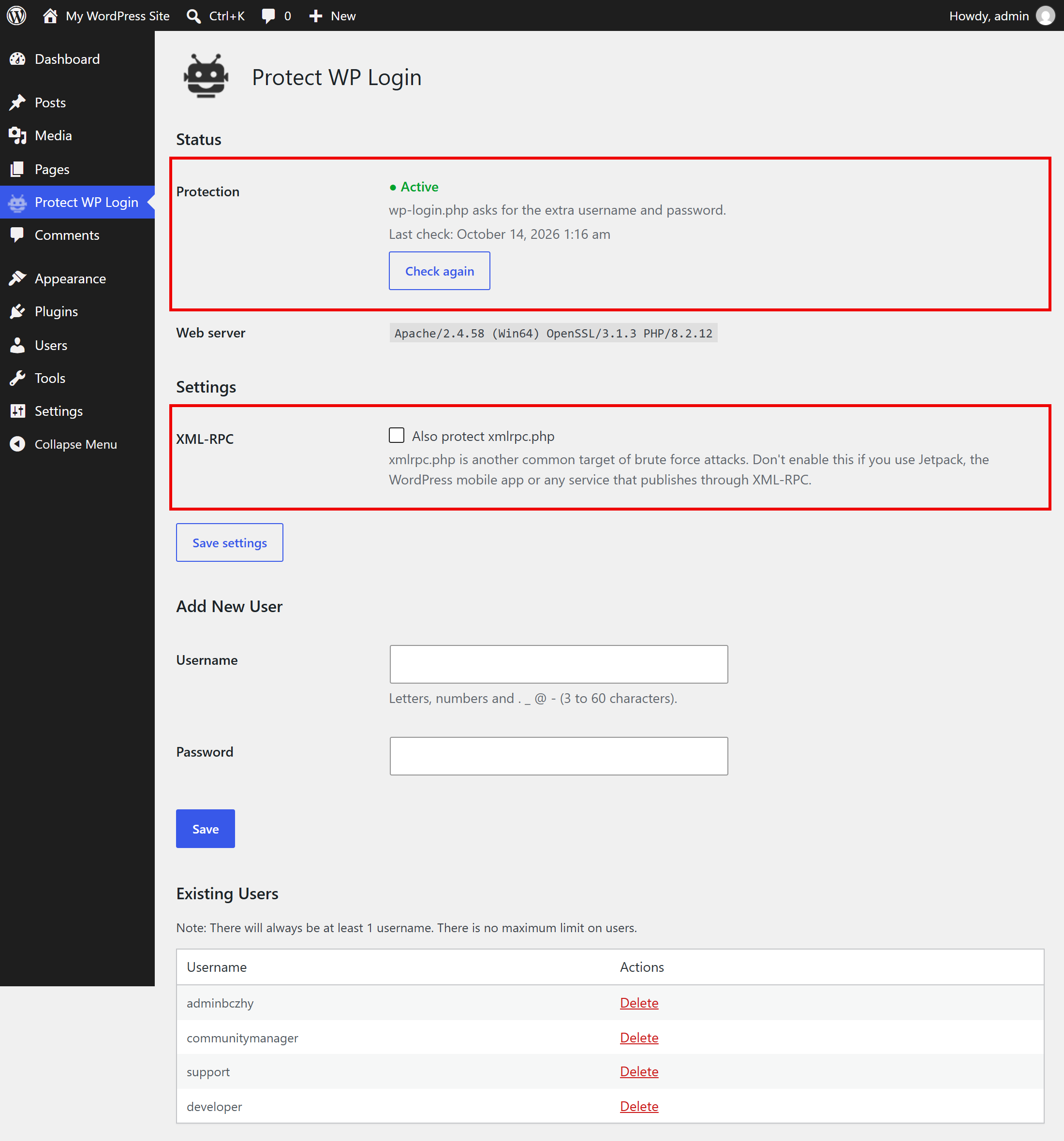
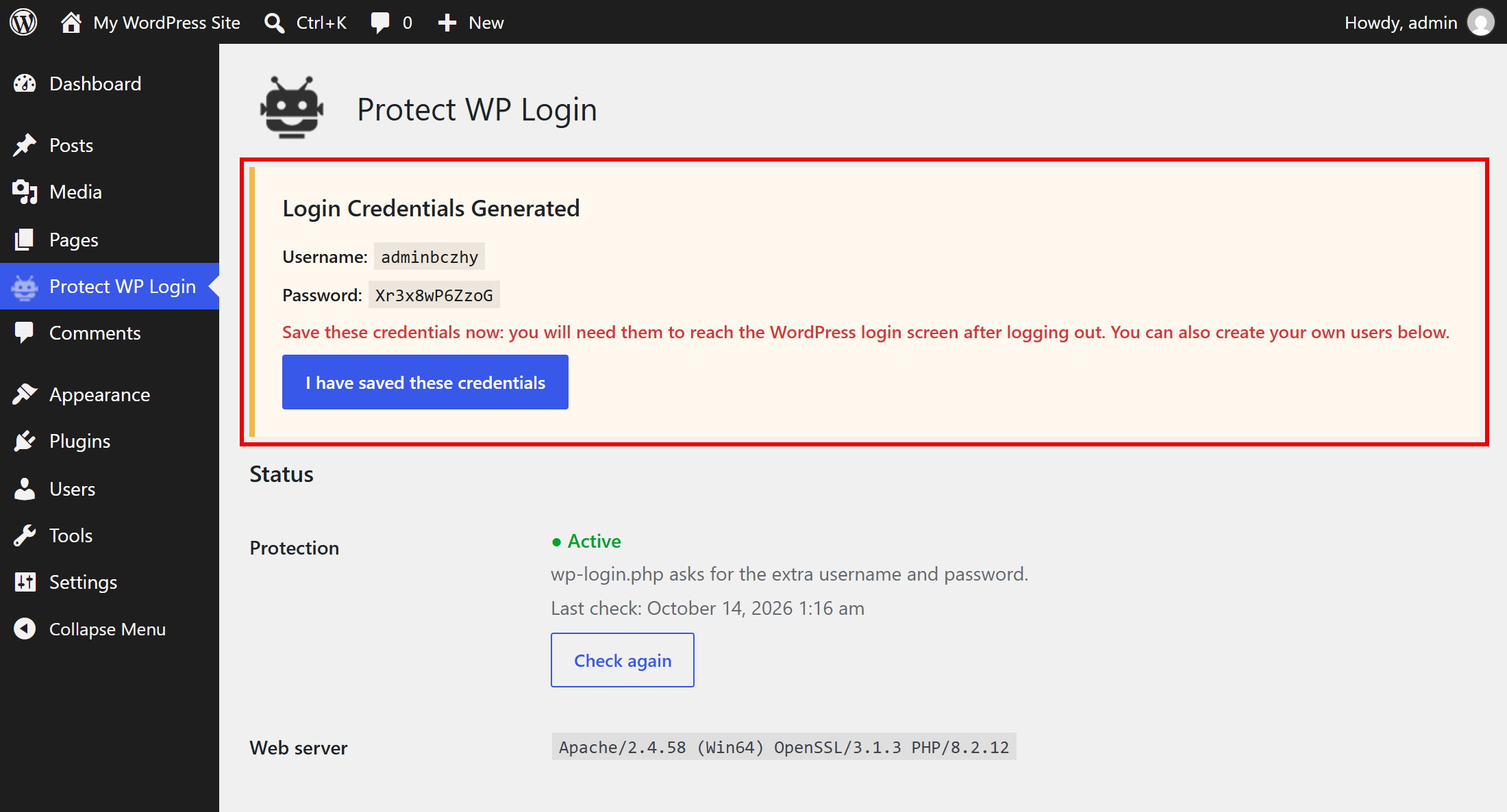
xmlrpc.php, another common target of brute force attacks. - Creates a random username and password on activation, and keeps them visible until you confirm you saved them.
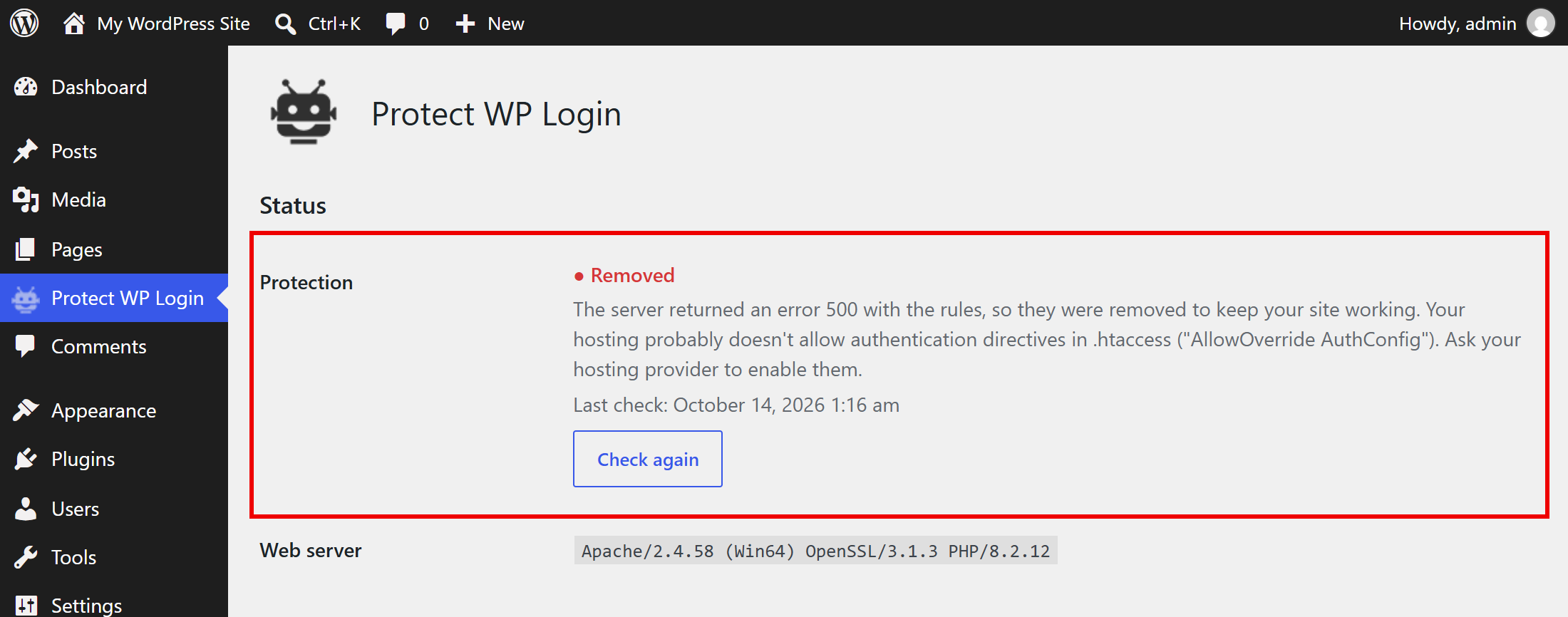
- Checks the protection right after writing the rules: if your hosting doesn't support them, they are removed automatically so your site keeps working.
- Status panel that shows whether the protection is really active.
- Password protected posts keep working for your visitors.
- Unlimited users, managed from the WordPress admin.
- Translated into English, Spanish, German, French, Italian and Portuguese.
How it works
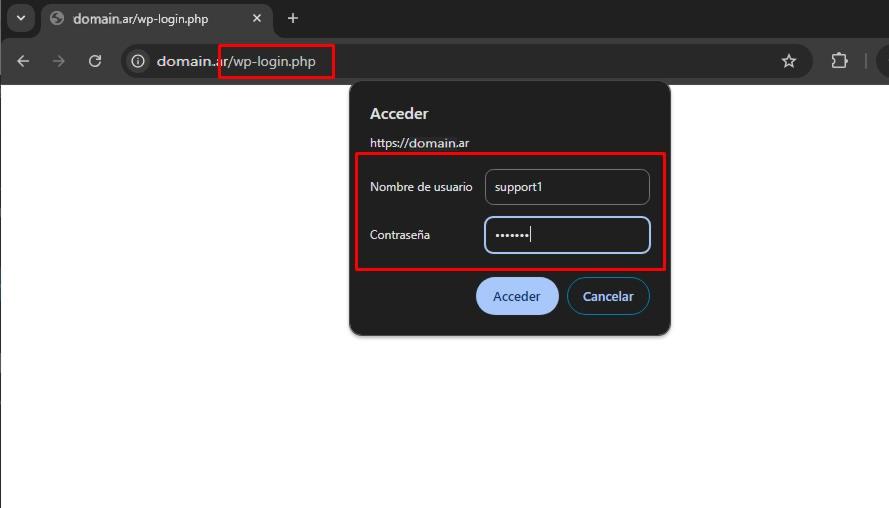
- A visitor or a bot opens
wp-login.php. - The web server asks for the extra username and password managed by the plugin.
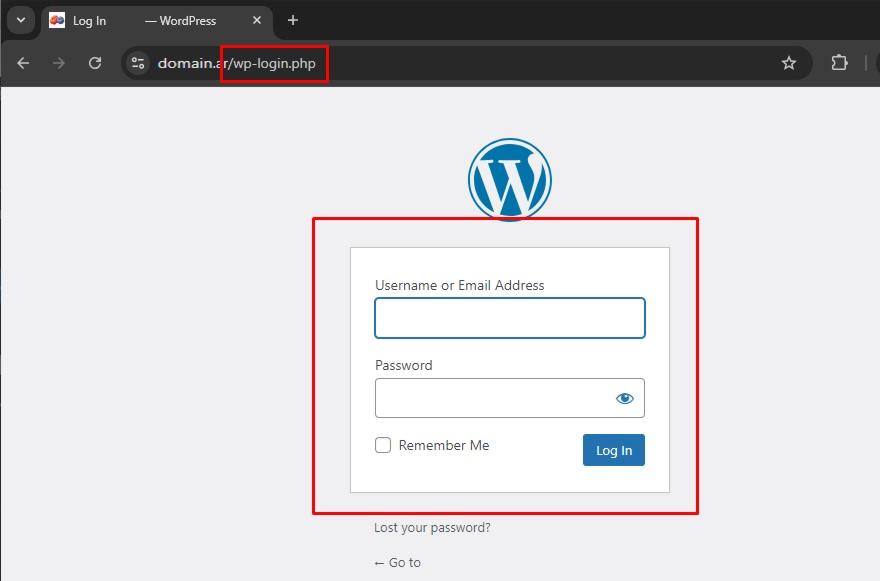
- Only with the right credentials the usual WordPress login form is shown. Wrong credentials are rejected by the server.
Screenshots
Click an image to see it full size.

Requirements
- WordPress 6.0 or later (tested up to 7.1) and PHP 7.4 or later.
- Apache or LiteSpeed web server with
.htaccesssupport (most shared hosting). On Nginx, the plugin shows the configuration to add to the server. - Single site installations. WordPress Multisite is not supported yet.
Installation
- In WordPress, go to Plugins > Add New Plugin and search for Protect WP Login.
- Click Install Now and then Activate.
- The plugin page opens with the generated username and password. Save them before logging out, or create your own users on the same page.
Frequently Asked Questions
How is it different from other login security plugins?
Plugins like Wordfence or Limit Login Attempts check each login attempt inside WordPress, after it has loaded. Protect WP Login blocks the request at the web server, before WordPress loads, so bots don't use your server resources. You can use both: Protect WP Login is an extra layer in front of your security plugin.
I got locked out. How do I get back in?
Connect to your site by FTP or with the file manager of your hosting, open the .htaccess file in the WordPress folder and delete the lines between # BEGIN Protect WP Login and # END Protect WP Login. You can also rename the wp-content/plugins/protect-wp-login folder to deactivate the plugin.
Will it work on my hosting?
It works on Apache and LiteSpeed servers that allow .htaccess files, which covers most shared hosting. After writing the rules the plugin checks your site: if the server answers with an error, the rules are removed automatically and the status panel explains what happened.
Does it work on Nginx?
Nginx doesn't read .htaccess files. The plugin page shows the configuration you (or your hosting provider) have to add to the Nginx server to protect wp-login.php with the same users.
Do password protected posts still work?
Yes. Visitors can still unlock password protected posts and pages without knowing the extra credentials.
Should I also protect xmlrpc.php?
If you don't use Jetpack, the WordPress mobile app or another service that publishes through XML-RPC, enabling it blocks another common entry point for brute force attacks.
Do I need to enter the extra password every time?
Browsers remember Basic Authentication credentials during the session, and most of them (Chrome, Firefox, Edge, Safari) offer to save them like any other password, so you don't have to type them again.
How do I add or delete users?
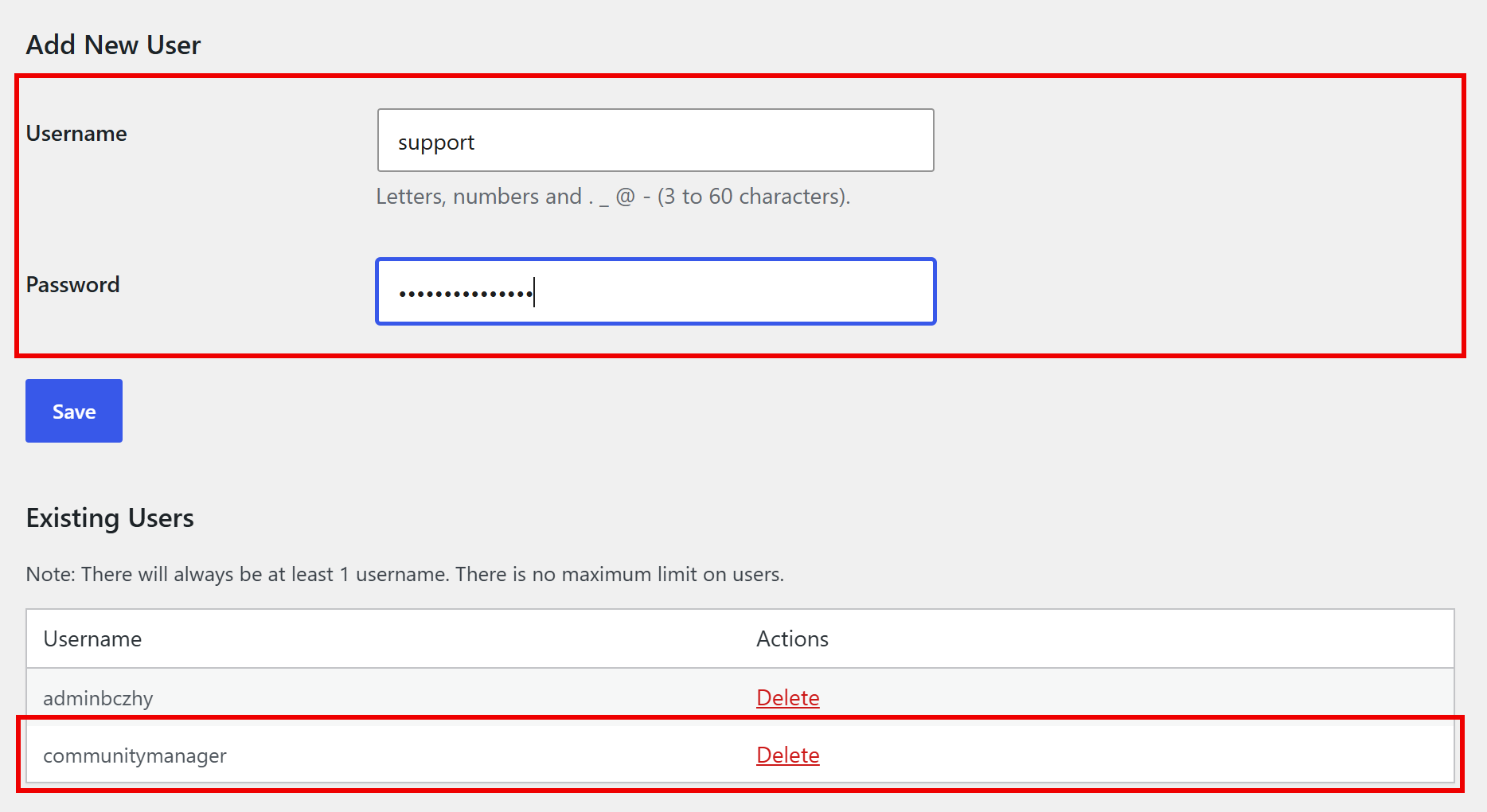
Go to the "Protect WP Login" page in the admin menu. Enter a username and password and click "Save" to add a user, or click "Delete" next to an existing user. There is always at least one user.
Do I need a complex username and password?
A simple combination is enough to stop bots, because they are blocked before reaching WordPress. The password can't be the same as the username.
Is it secure without HTTPS?
Basic Authentication sends the credentials in every request to wp-login.php, just like the WordPress login form. Use HTTPS (free with Let's Encrypt on most hosting) to keep them private.
Plugin details
| Version | 1.1.2 |
|---|---|
| Requires WordPress | 6.0 or later |
| Tested up to | WordPress 7.1 |
| Requires PHP | 7.4 or later |
| Languages | English, Spanish, German, French, Italian and Portuguese |
| License | GPLv2 or later |
Have a question or found a bug? Write to us in the support forum.
If you find it useful, leave a review on WordPress.org: it helps other people find it.